

DropdownField
The DropdownField component is a control that allows users to select a single option from a dropdown list.
Usage
DropdownField is included in the UraniumUI.Material.Controls namespace. You should add it to your XAML like this:
xmlns:m="clr-namespace:UraniumUI.Icons.MaterialSymbols;assembly=UraniumUI.Icons.MaterialSymbols"
xmlns:material="http://schemas.enisn-projects.io/dotnet/maui/uraniumui/material"
Then you can use it like this:
<material:DropdownField Title="Pick an option" ItemsSource="{Binding Items}" />
| Light (Android) | Dark (Windows) |
|---|---|
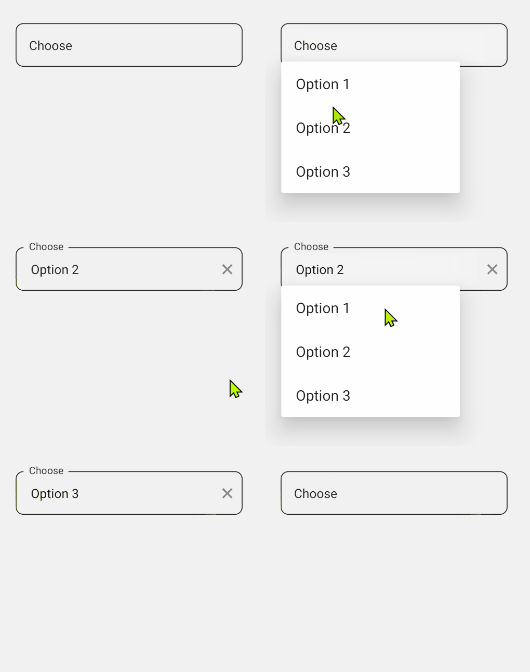 |
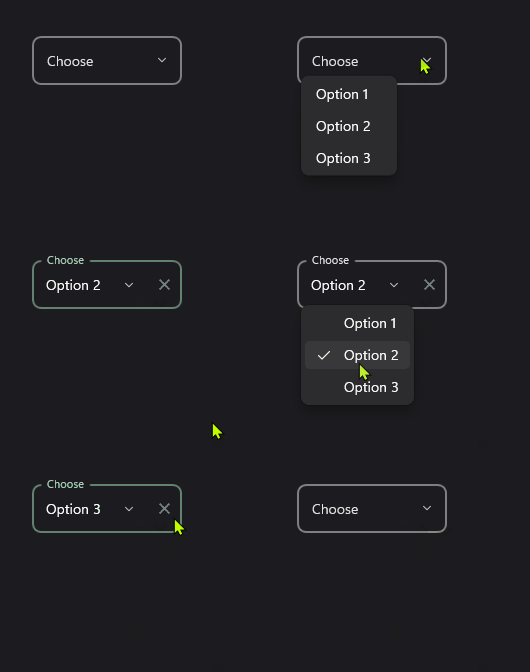 |
Icon
DropdownFields support setting an icon on the left side of the control. You can set the icon by setting the Icon property. The icon can be any ImageSource object. FontImageSource is recommended as Icon since its color can be changed when focused.
<material:DropdownField
    Title="Pick an option"
    ItemsSource="{Binding Items}"
    Icon="{FontImageSource FontFamily=MaterialOutlined, Glyph={x:Static m:MaterialOutlined.Arrow_drop_down_circle}}"
    />
[!TIP] You can use any
ImageSourceobject as Icon. ButFontImageSourceis recommended as it can change its color when focused. Refer to the Icons Documentation for more details on using icons.
AllowClear
DropdownFields support clearing the selected item by setting the AllowClear property to true. Default value is false.
Accessibility
DropdownField wraps the core Dropdown in a Material input. Use Title as the visible field label and ensure item text is clear when announced by platform picker/dropdown UI.
If you need a fully templated combo-box style control with documented keyboard behavior, prefer SelectField. Its inner Select supports Tab, Enter/Space, Up/Down, Home/End, and Escape behavior and exposes generated semantic hints.
<material:DropdownField
    Title="Pick an option (Clearable)"
    ItemsSource="{Binding Items}"
    AllowClear="True" />

<material:DropdownField
    Title="Pick an option (Unclearable)"
    ItemsSource="{Binding Items}"
    AllowClear="False" />
Validation
DropdownFields support validation rules. SelectedItem(object) will be used to validate the control. You can set the Validations proeprty to add validation rules. Default
<material:DropdownField
    Title="Pick an option"
    ItemsSource="{Binding Items}"
    Icon="{FontImageSource FontFamily=MaterialOutlined, Glyph={x:Static m:MaterialOutlined.Arrow_drop_down_circle}}">
    <material:DropdownField.Validations>
        <validation:RequiredValidation />
    </material:DropdownField.Validations>
</material:DropdownField>
Close Method
The Close() method allows you to programmatically close an open dropdown. This is useful when you need to close the dropdown during navigation or in response to other events.
// Close the dropdown programmatically
dropdownField.Close();
[!NOTE] When navigating between pages, MAUI does not automatically close native popups. You can call the
Close()method in your navigation logic to ensure the dropdown is closed before navigating.
Example: Closing dropdown on navigation
protected override void OnDisappearing()
{
    base.OnDisappearing();
    myDropdownField.Close();
}